
1. From Homepage menu panel, navigate to the Contacts page

2. Then click "Add New"

3. Click Upload from excel file

4. Select the list(s) where the contacts will be added and then choose the excel file (*.xls) that contains the email addresses
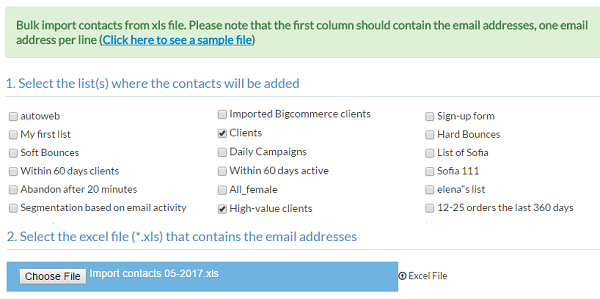
Please note: First 3 rows of the Excel file (*.xls) cannot be left blank and the 1st column should be email. Please see attached excel template for reference.

5. Click "Import Contacts" to continue. On next page, choose how each excel column is mapped to a contact field within ContactPigeon. You can add new custom fields via the edit Contacts
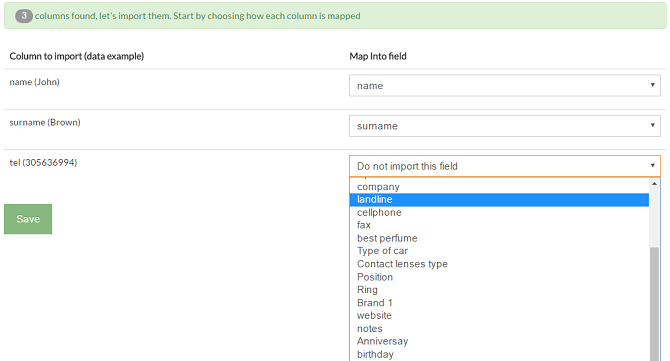
6. When you're finished, click Save
